
On this page
Create Your Account
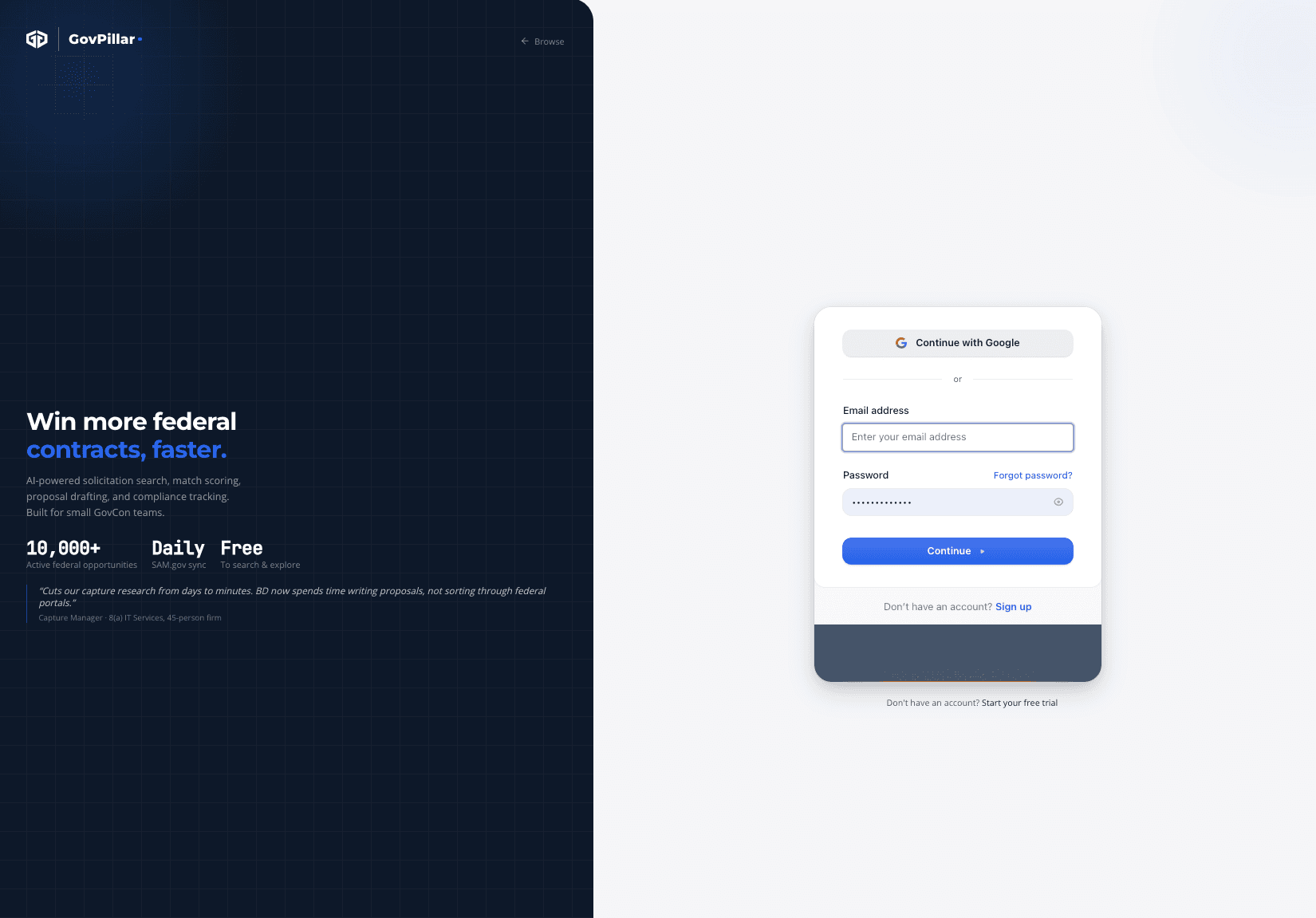
Go to govpillar.com and sign up with your work email. Google and GitHub sign-in are also available.
Your account and company workspace are created on first login. If you're joining a team that already has a GovPillar account, ask the owner to send you an invite — don't create a separate workspace.
Build Your Company Profile
The Setup Wizard opens automatically after first login. It's the most important thing you'll do in GovPillar — the match scores, proposal drafts, and gap analysis are all built from what you enter here.
Do this before searching
Every opportunity score is blank until your profile has at least a primary NAICS code and a capability statement. Takes about 10 minutes.
| Field | Why it matters |
|---|---|
| UEI / CAGE Code | Ties your account to your SAM.gov registration |
| Primary NAICS code | The main driver of every AI match score — get this right first |
| Additional NAICS codes | Add up to 10 for adjacent capabilities you actively pursue |
| Socio-economic certs | 8(a), HUBZone, SDVOSB, WOSB — determines set-aside eligibility scoring |
| Capability statement | Paste your real capability statement; the AI uses the exact text |
| Security clearances | Facility clearance level — needed to score clearance-required solicitations |
| Contract vehicles | GSA MAS, SEWP, OASIS, etc. — filters results to vehicles you can bid on |
| Past performance | Your strongest scoring signal for technical fit — add at least 3 projects |
Use Auto-populate from Website to give the AI a head start: enter your company URL and it will draft the capability statement and differentiators. Review and edit before saving — it's a draft, not a final product.
Dashboard Layout
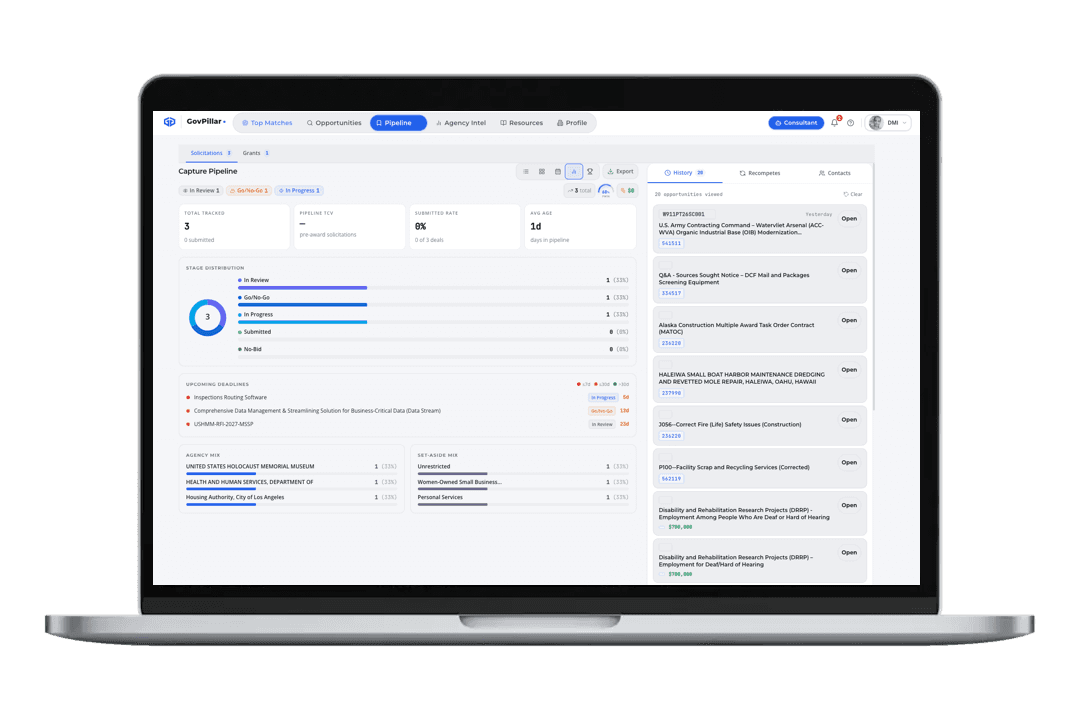
The top navigation has five main tabs. Each has a single-key shortcut that works from anywhere in the app.
| Tab | Key | What's here |
|---|---|---|
| Top Matches | — | Pre-scored opportunities curated for your profile |
| Opportunities | E | Full SAM.gov search with filters |
| Pipeline | P | Your saved pursuits in Kanban view |
| Agency Intel | I | Spend analytics from USASpending.gov |
| Resources | — | Capture templates and reference guides |
| Profile | C | Your company profile and settings |
The AI Capture Consultant (Consultant button, top right) opens as a side panel over any tab. Press A to toggle it without reaching for the mouse.
Your First Pursuit
- Press / to focus search, type a NAICS code or keyword, hit Enter
- Click any result to open the detail panel on the right
- Open the Evaluate tab → click Run Fit Analysis to score capability alignment
- If it scores well, click Save to Pipeline — it lands in the Review stage
- Open the Develop tab → RFP Shredder → select the opportunity preset and click Shred
The full workflow
Search → Score → Save → Shred RFP → Compliance Matrix → Bid Roadmap → Scorecard → Proposal Draft. Each step feeds the next.
Multiple Company Profiles
If you pursue contracts under different entities — a subsidiary, a teaming vehicle, or a separate 8(a) — you can maintain multiple company profiles under one login.
- Add a profile: Profile tab → Add Company Profile
- Switch the active profile from the profile selector in the Profile tab
- The Primary profile is used for all AI scoring by default
- Each profile has its own NAICS codes, certs, and past performance
Was this page helpful?